
Email Encryption
If you are required to send confidential information via email, the email and its contents must be encrypted. this guide will walk you through encryption via Microsoft 365 tools.
From Microsoft: Encrypting an email message in Outlook means it’s converted from readable text into scrambled cipher text. Only the recipient who has the private key that matches the public key used to encrypt the message can decipher the message for reading. Any recipient without the corresponding private key, however, sees indecipherable text.
Read on for information about how to send encrypted email from Outlook, and how recipients receive encrypted mail.
To Encrypt an Email
1. Create a New Email
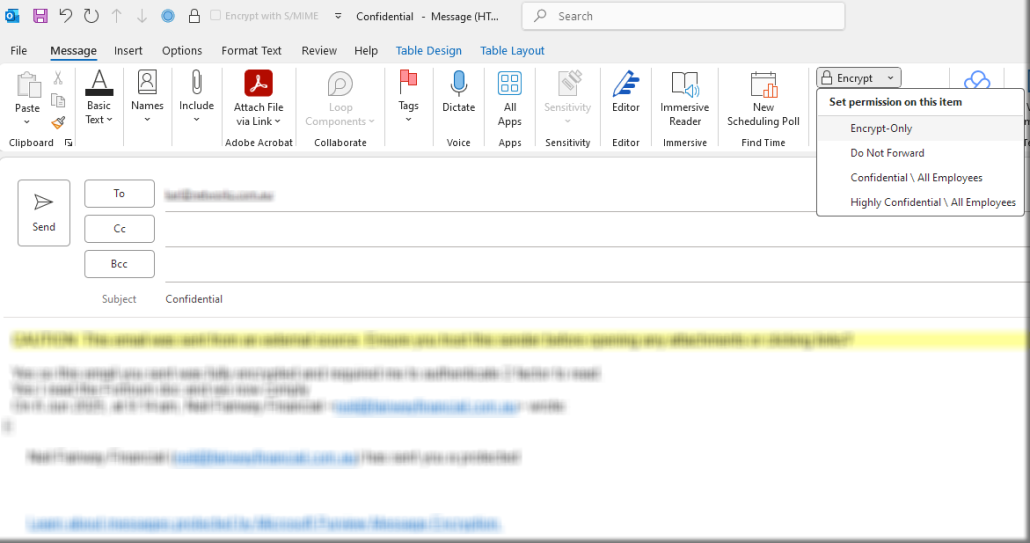
2. The the message tab, use the drop dowen to select the desired encryption option.
An explanation of these options are below.

3. Send the email
Emails can be encrypted with additional actions
Here’s a more detailed breakdown:
Encrypt: This option encrypts the email content, ensuring only the intended recipients can read it. It doesn’t impose any restrictions on forwarding, printing, or copying.
Do Not Forward: This option encrypts the email and prevents recipients from forwarding, printing, or copying the content.
Confidential (All Employees): This option includes all the restrictions of “Do Not Forward,” plus it prevents external recipients from viewing the email.
Highly Confidential (All Employees): This option grants read-only access for the protected content, likely for the most sensitive data. It’s similar to “Confidential” but restricts access further.
Attaching a file to encrypted emails
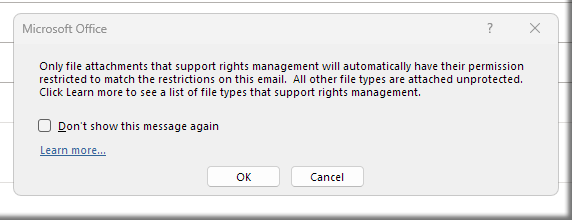
You may receive a Microsoft Office information box that warns of File Attachments. Click Learn more… link to read about native support for encrypted attachments.
The following file types are automatically supported in message encryption:
-
-
-
-
- Images such as JPG, PNG and TIF
- Microsoft Office files such as Doc, Excel and PowerPoint
-
-
-
Receiving Encrypted Email
Recipients of encrypted messages will need to authenticate via a passcode to view the message. Below are instructions.
To accept encrypted email via passcode:
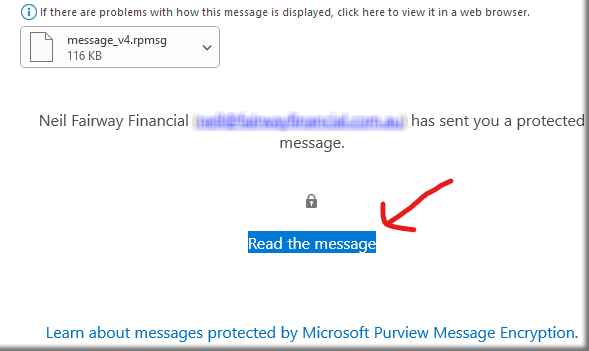
1. In the body of the email, press the link that prompts Read the Message
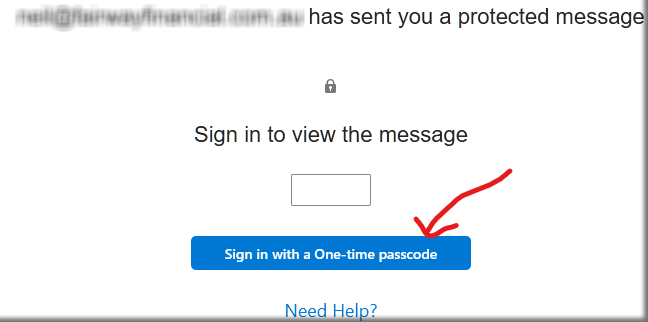
2. Select Sign in with a One Time passcode.
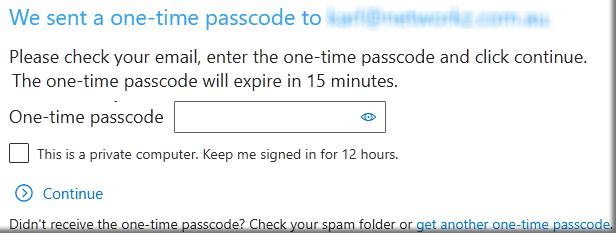
3. You will be taken to a screen prompting you to enter your one-time passcode.
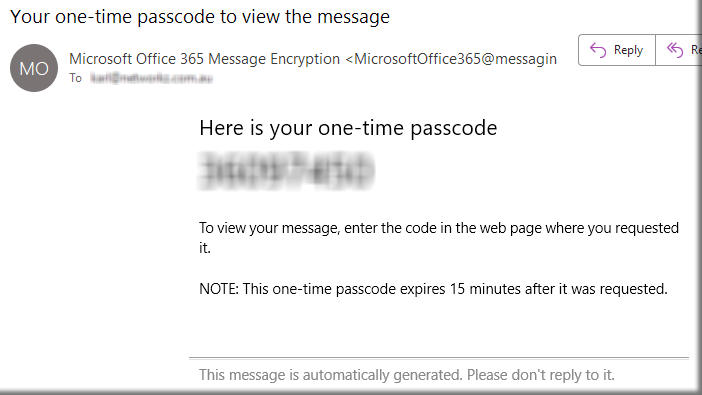
4. Return to your inbox to access a new email that contains the passcode. The code can be copy/pasted from ths email into the prompt from Step 3.
Outlook for Mac
1. Create a New Email.